
Content Creation
Generate professional product titles, descriptions, SEO metadata, lifestyle photography, and video from a single platform — turning any product into store-ready content in minutes.
The content bottleneck is killing your growth
Every product in your catalog needs a title, a description, SEO metadata, FAQ answers, lifestyle photography, packshot images, and increasingly short-form video. Multiply that by hundreds or thousands of SKUs, and the math breaks fast. Traditional workflows demand a copywriter for the text, a photographer for the images, a retoucher for post-production, and someone to stitch it all together and push it to your store. Each handoff introduces delays, inconsistencies, and cost. The result: products sit unlisted for days, descriptions drift from your brand voice, imagery looks mismatched across listings, and your team spends more time coordinating production than actually selling. EcomVault collapses this entire pipeline into one platform where AI handles the heavy lifting — text, images, video, and optimization — while your brand rules guarantee every output stays on-brand from the first draft.
AI-generated text content that sounds like your brand
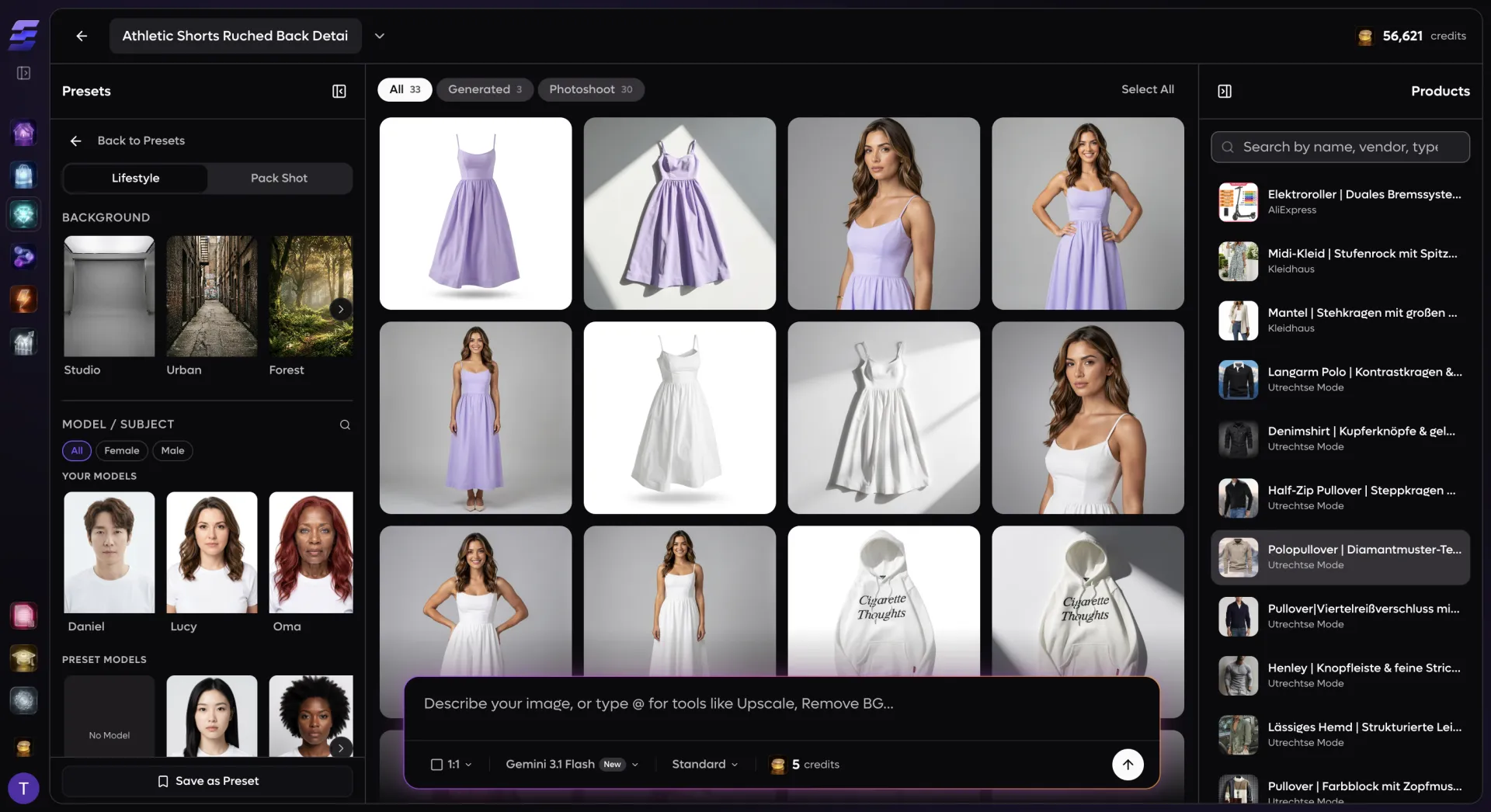
Studio-quality visuals without a photographer
From raw product to published listing in one pipeline
**Step 1 — Import and analyze.** Products enter EcomVault through the universal import system. The moment a product arrives, AI vision models analyze its images to extract a detailed product analysis: general description, brand name, product type, notable features, material, season, target audience, style, color palette, formality level, fit type, and more. This analysis becomes the foundation for all content generation downstream.
**Step 2 — Generate text content.** Using the product analysis and your Brand Book templates, the content generation service produces a title, description, SEO meta title, SEO meta description, and FAQs in a single AI call. Templates control the structure; the AI fills in the substance. Placeholder post-processing handles dynamic variable insertion — image blocks, name assignments, translated values — so the final output is ready to publish without manual editing.
**Step 3 — Create visuals in Studio.** Open the product in AI Studio, where your reference images are pre-loaded in the product sidebar. Select a visual preset or build a custom prompt, choose your model and resolution, and generate. Iterate on the canvas — remove backgrounds, upscale, try different presets — until you have the assets you need. Save them directly to the product from the canvas.
**Step 4 — Automate with Workflows.** For catalog-scale operations, build a workflow that chains product source, text generation, image generation, and store sync nodes into a single pipeline. Trigger it on import, on schedule, or on demand for batches of up to 100 products. Each node reads from your Brand Book automatically, so every output is on-brand without manual intervention.